1. Tap the “Log Hand +” icon in the bottom right corner of the dashboard screen to go to Hand Setup.
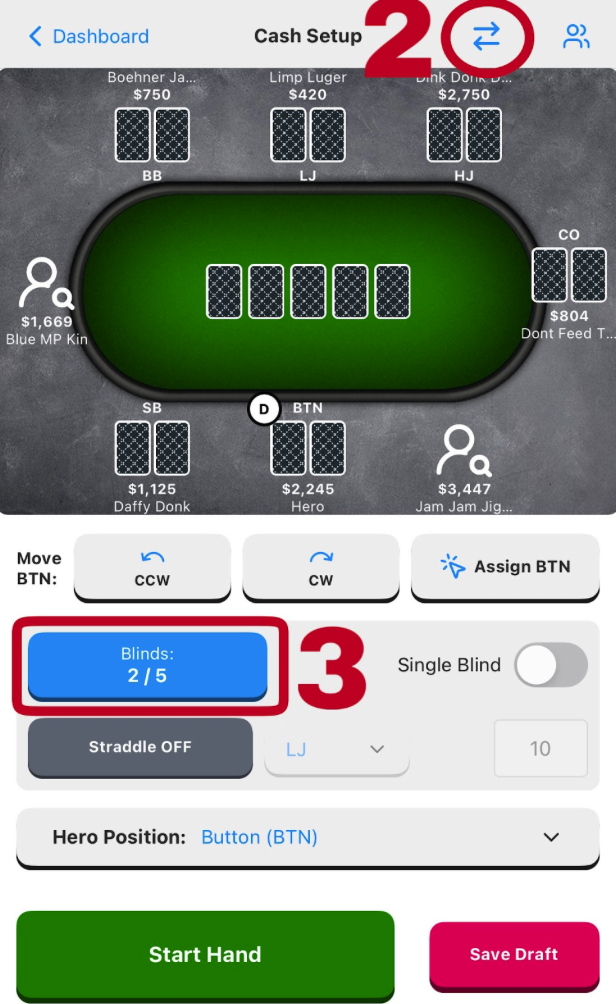
2. Click the “Game Mode” icon near the top right of Hand Setup and select Cash or Tournament.
3. Press the “Blinds” button in the left center of the screen and choose the blinds you are playing. You can toggle on a Big Blind Ante or an optional 3rd blind. Tap “Confirm” when finished with your selections.
NOTE: If a hand is played without a SB, there is a toggle for “Single Blind” next to the “Blinds” button on Hand Setup.
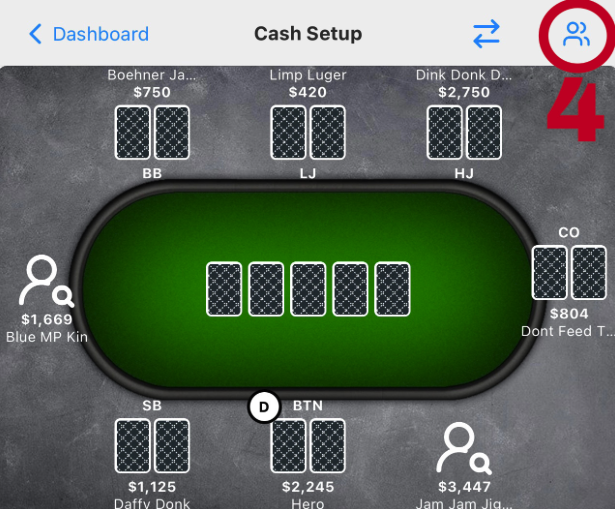
4. Click the “Edit Poker Table” icon in the top right corner of Hand Setup.
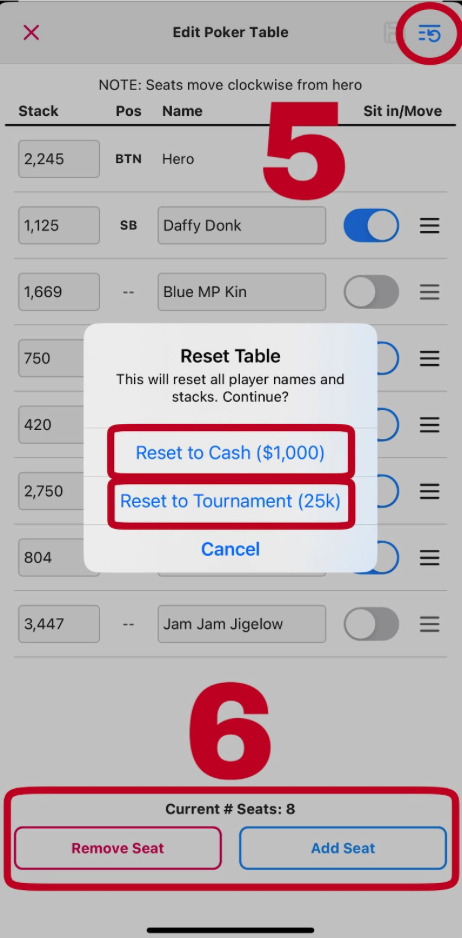
5. Press the “Reset Table” button (if desired) to clear all villain names and revert stacks to the default “stack size” assigned in Settings.
6. Adjust the number of seats to match your game using “Add Seat” and “Remove Seat” buttons as needed.
NOTE: The number of seats should match the actual number of chairs (occupied or not) at your table. Unless your poker room will add more chairs to accommodate additional players, this should remain unchanged while you’re in that game.
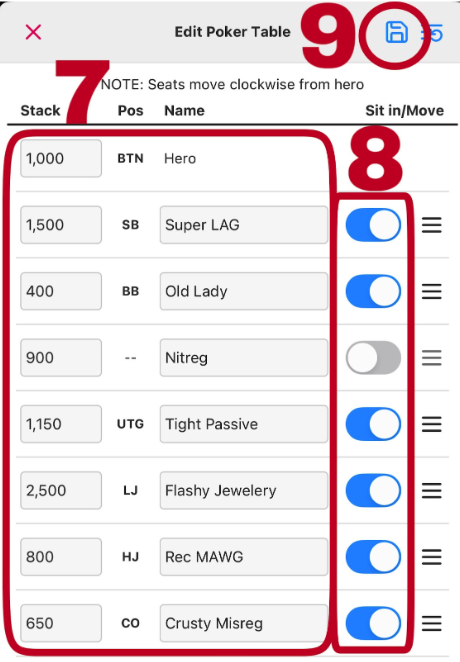
Input stack sizes and descriptive names for the villains at the table.
NOTE: The seats go CLOCKWISE down the list from Hero.
Use the “Sit Out” Toggle if a seat is empty or villain is away from the table.
9. Tap the “Save” Button once you have constructed the table accurately to return to Hand Setup.