Before You're Seated
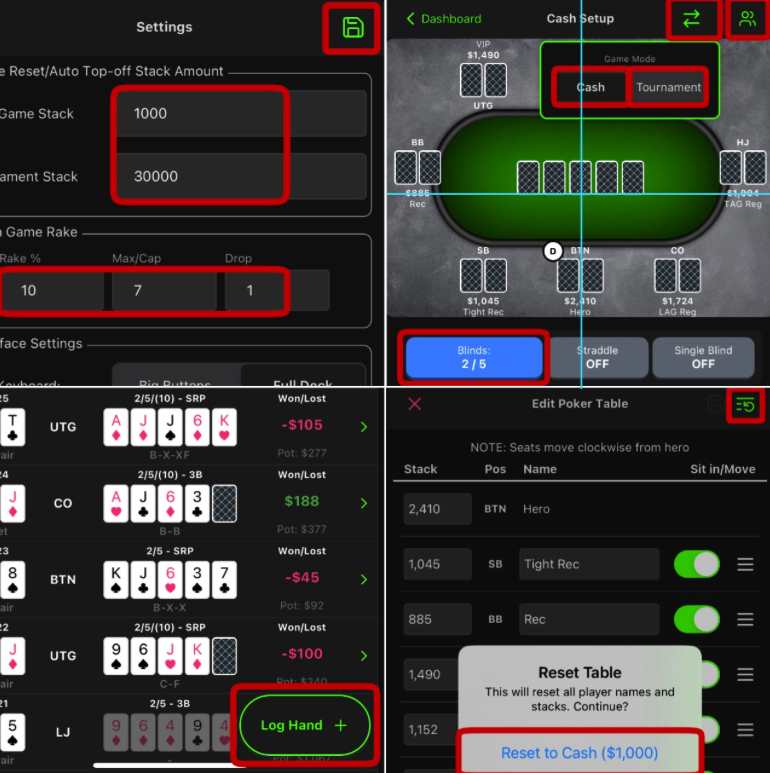
- Go to Settings and designate the default starting stack size for players in your game. This will be used for all stacks when you reset your table. (NOTE: If a player gets felted, their stack will reset to the saved default amount.)
- Crusher subscribers can also declare the rake/drop taken for their game (if playing cash)
- Save Settings and go to Hand Setup. Then choose both the Game Mode (cash or tournament) and the Blinds you’ll be playing.
- Go to the “Edit Poker Table” menu and adjust the number of seats to reflect your game. (Tap “Add Seat” and “Remove Seat” buttons as needed).
- Click the Reset Table icon and choose the appropriate default (cash or tournament) for the game you’re playing
When You're Seated
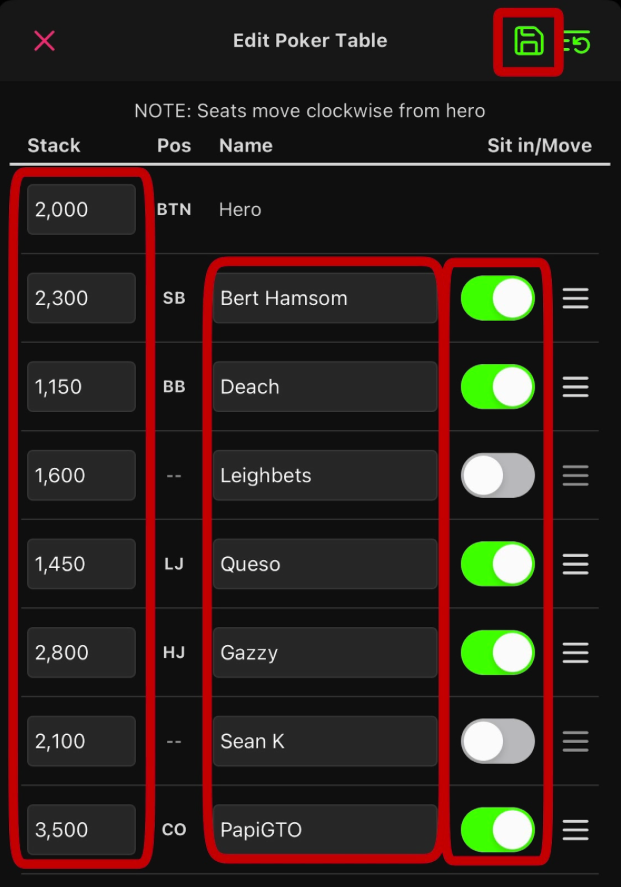
- While still in “Edit Poker Table,” assign descriptive names and stack sizes to all villains at the table.
- Use the “Sit Out” toggle if a player is away from the table or if a seat is unoccupied. (NOTE: Do not remove a seat if it is empty.)
- Press the “Save” icon in the top right corner.
Logging a Hand
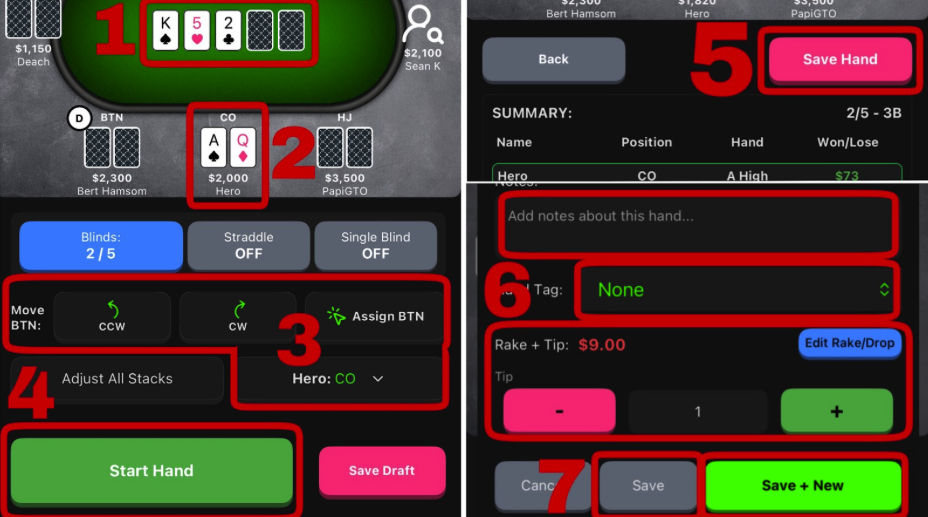
- (1) Tap the board to input ALL the board cards of the hand (yes turn and river too if the hand reached those streets) and press the “Confirm” button.
- (2) Then select a specific player to input their hole cards and tap the” Confirm” button. Do this for not only hero but all villains that revealed their hole cards.
- (3) Either assign Hero’s position using the dropdown or move the BTN to the correct player, and (4) press the “Start Hand” button to begin capturing the action of the hand.
- (5) Tap the “Save Hand” button when the hand is completed and you will have the opportunity to (6) assign an optional tag for hand classification and/or write notes. If you’re a Crusher sub, you also have the ability to designate a tip paid by the hand winner (for cash hands only).
- When finished, (7) click the “Save button” to return to Dashboard or the “Save + New” to log another hand.
Adjusting Stacks/Names
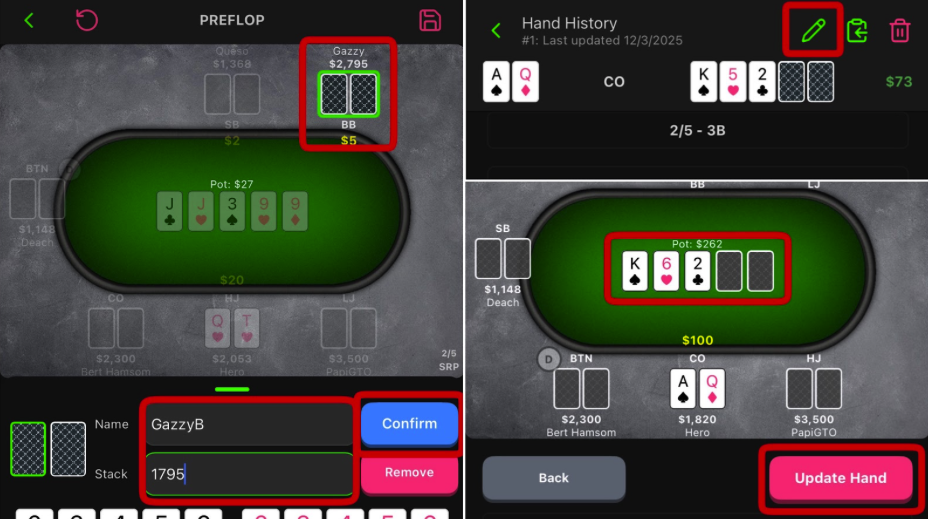
- If you notice a stack size or villain name is incorrect, simply click on the player and make the correction(s). (NOTE: Stack size and name changes can be done both prior to and during the logging of a hand, but position and seat changes must be done before pressing “Start Hand”.)
- If you notice something is wrong about a saved hand, tap the hand you would like to Edit in Dashboard and then press the “Pencil” icon in the top right of the Hand History page. Use the Back button if necessary and make the desired changes. Click “Update Hand.” (NOTE: The Edit feature is an exclusive for Crushers.)
Backlogged with Hands
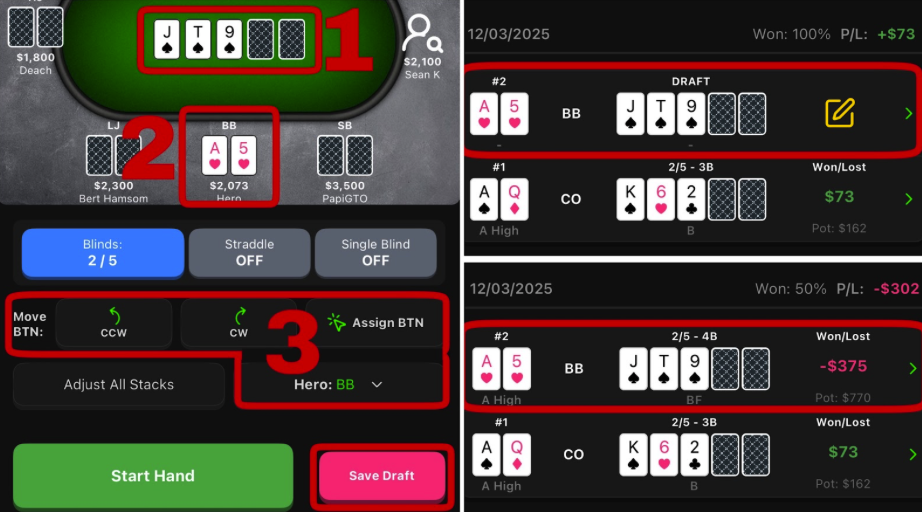
- Start logging a hand and at any point in the process, you have the ability to press the “Save Draft” button if you’re a Crusher subscriber.
- We recommend inputting (1) board, (2) hero & known villain hole cards, and (3) hero position or correct BTN placement, but you can record as much or as little detail as you like in a draft.
- Repeat as necessary creating drafts for all hands you’re unable to log fully at the moment. (NOTE: Prior to clicking “Start Hand,” the “Save Draft” button will be at the bottom of the screen and after clicking “Start Hand,” the “Save Draft” button will be a “Disc” icon in the top right.)
- (4) When you are ready to finish logging a draft, tap it in Dashboard and you will return to the hand wherever you left off like a bookmark. Upon finishing and saving the hand, the former draft will now be a completed hand in Dashboard.
Moving Players/Sitting Out
- If someone changes seats at the table, open “Edit Poker Table” and drag the players to their respective position relative to Hero at the table.
- When someone gets up from the table, use the “Sit Out” shortcut. Simply long press on that player and a “Sit Out” button will pop up.
- After a few orbits or as needed, open “Edit Poker Table” and update all the stacks at the table. Card dead periods are a great time for doing this.